Posts

Adding Properties to Visual Web Parts
Image
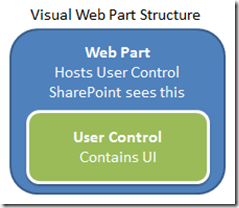
Visual Studio 2010 introduces a new feature called “Visual Web Parts”, which allows a developer to create a web part by using a user control as a base. SharePoint 2007 developers will find this very familiar, as they’ll see that Visual Studio 2010 simply does what we had done in the past, which is to create a web part to host the user control. So a Visual Web Part is a user control inside a web part. Let’s walk through creating a Visual Web Part and allow user customization of it. We’ll start by adding a Visual Web Part to a SharePoint project. After you add the Visual Web Part to your SharePoint project, you’ll notice Visual Studio adds many items to support the new web part. There are three main items in here of interest: HelloVisualWebPart.cs  -This is the actual web part. The class contained in this code file inherits from WebPart and overrides CreateChildControls. HelloVisualWebPartUserControl.ascx  - This is the user control that will make up the interface ...
Hide custom code within SP 2010 modal windows

Image
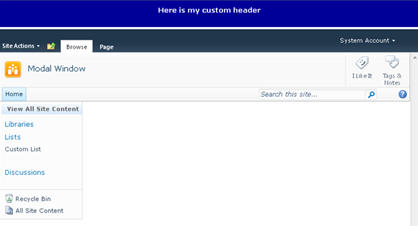
If you have ever added custom elements to your master page above or below the standard DIV tags you will notice that they start appearing in the SharePoint 2010 Modal windows when you don’t want them to. The simple fix is to use the class “s4-notdlg” on your custom element to hide it when viewing the modal pop up windows. To give you a better idea of what I am talking about I added in a simple DIV tag right above the s4-ribbon row DIV: The inline CSS below is just to make it stand out. Here is my custom header Here is what the site looks like with the custom header applied: If I create a new list item or upload a document, the Modal Window shows my custom div above the input form. Not good… To fix this you simply have to add the “s4-notdlg” CSS to the custom DIV tag to hide it from the modal window. Example: Here is my custom header Now the modal window will not show my custom DIV:

Add Time/Date to Layouts or Master Page

Image
To add this web control to your master page do the following: Add in the following registration to the top of the master page: <%@ Register Tagprefix="SPSWC" Namespace="Microsoft.SharePoint.Portal.WebControls" Assembly="Microsoft.SharePoint.Portal, Version=14.0.0.0, Culture=neutral, PublicKeyToken=71e9bce111e9429c" %> Add in the the following code right below the welcome control “IdWelcome” DIV in your master page.           Then add in some quick styles to your custom style sheet so that the time is set to white.  .currenttime{     color: #FFF;     text-align: right;     font-family: Arial, sans-serif;     font-weight: normal;     font-size: 12px; } Your site should look something like this: Notice the time below the users name. Now if the logged in user changes the time zone in their profile it will automatically update the time on all the pages that use...

Branding SharePoint Drop Downs

Image
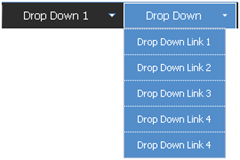
SharePoint has quite a few different drop down menus, within this post I will highlight the three primary drop downs and the CSS that drives it. #1 Main Navigation Drop down:   The Main Navigation drop downs are a new addition to SharePoint from its previous SPS 2003 version. Here are the following classes that make up this navigation: Class Name Details .ms-topNavFlyOutsContainer { border:solid 1px #c2dcff; } This is the outer container. Modify this for the outer border. .ms-topNavFlyOuts { background-color:#F2F8FF; font-family:Tahoma; font-size:8pt; } This is the inner container. Modify this for the drop down background and basic fonts. .ms-topNavFlyOuts a { display:block; *width:120px; min-width:120px; color:#3764a0; padding:4px 8px 4px 8px; } This class specifies the drop down items, width, color, and padding.  You might want to put in a width: 100% !important;  tag in case you have an instance where you have a small drop down item and an item that its...

Navigation Drop Down Styles in SharePoint 2010

Image
If you would like to stylize your navigation drop downs in SharePoint 2010 here are the 4 main key classes to update your CSS: The OOTB Navigation Drop Down CSS: “COREV4.CSS”  .s4-tn ul.dynamic{ /* [ReplaceColor(themeColor:"Light2")] */ background-color:white; /* [ReplaceColor(themeColor:"Dark2-Lighter")] */ border:1px solid #D9D9D9; } .s4-tn li.dynamic > .menu-item{ display:block; padding:3px 10px; white-space:nowrap; font-weight:normal; } a:link{ /* [ReplaceColor(themeColor:"Hyperlink")] */ color:#0072BC; text-decoration:none; } .s4-tn li.dynamic > a:hover{ font-weight:normal; /* [ReplaceColor(themeColor:"Light2-Lighter")] */ background-color:#D9D9D9; } Example   /* Drop Down: Container Style */  .s4-tn ul.dynamic{ background-color:white; border:3px dashed #000; } /* Drop Down: Item Padding Style */  .s4-tn li.dynamic > .menu-item{ padding:10px 20px 10px 20px; } /* Drop Down: Hyperlink Styles */  .s4-tn li.dynamic > a{ f...

Display Current Login User Name in Sharepoint 2010 Using Sharepoint Designer 2010

Image
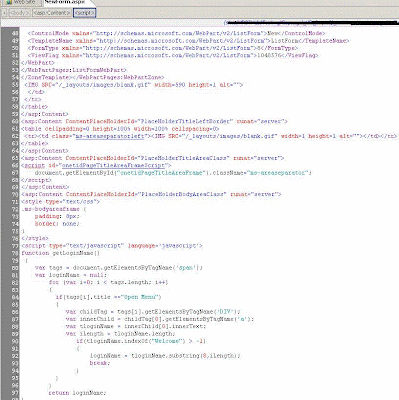
Display the current login username in sharepoint control.We have only access to sharepoint designer. We dont have access to add serverside code.  So we decide to user "Welcome username" message. We used javascript to display the username. Please check the following code. setPickerInputElement(1); call this function, and pass the people & group No.if there is only one people & control use "1", if you have more than 1, give on which control the current username need to display. Screen1:Paste the code as shown. Screen 2: With this approach, instead of people or group control, you can display the user name in textbox if required.

Sharepoint Programming

Q) Retrieving information from linked lists in SharePoint using LINQ to SharePoint? using System.Linq; using Microsoft.SharePoint; using Microsoft.SharePoint.Linq; In the Page_Load method, add the following code: DataContext dc = new DataContext(SPContext.Current.Web.Url); var customers = dc.GetList < Customer > (“Customers”); var customerDataSource = from customer in customers select new {CustomerName = customer.Title, ContactLastName = customer.PrimaryContact.Title, ContactFirstName = customer.PrimaryContact. FirstName}; CustomerGridView.DataSource = customerDataSource; CustomerGridView.DataBind() Q)How you can retrieve the name of each folder in the top - level site of a site collection, as well as the number of subfolders that each folder contains? using System; using System.Text; using Microsoft.SharePoint; namespace Wrox.SixInOne { class Program { static void Main(string[] args) { StringBuilder folderName = new StringBuilder(); using (SPSite si...